Troubleshooting
Read the latest Timeline entry, then open Compute, Code, or the relevant report source.
Diagnostic information
Before changing anything, capture four facts:
- Expected state: What did you expect Silico to be doing or showing?
- Last good state: Which Timeline entry, job, or report was definitely correct?
- Current state: Is the work waiting for you, queued for compute, actively running, failed, or complete with an unexpected result?
- Identity: Which thread (
th_…), experiment (exp_…), model checkpoint, dataset, and split are involved?
You cannot sign in or your Lab is missing
- Confirm that you used the GitHub account that received the invitation.
- If you are joining an organization, sign in to its Silico deployment once and ask an Admin or Owner to add you under Organization settings → Members.
- In the desktop app, open Connections, choose Add connection, and select the Lab available to your account.
- Ask an organization Admin or Owner to confirm your membership if the Lab is still missing.
An experiment will not launch
- Answer unresolved questions in the thread or plan.
- Verify the model, checkpoint, data, split, required credentials, compute, and stopping conditions.
- Open Organization settings → Compute and confirm that at least one option is ready.
- Open Organization settings → Billing and confirm the subscription or available capacity permits new work.
- Confirm private GitHub, Hugging Face, W&B, or environment-variable access at the correct personal or organization scope.
If an input is unavailable, update the plan or resolve the missing dependency.
An experiment appears stuck or blocked
- Open the experiment from the thread Timeline.
- Read the latest Timeline entry and answer any decision that needs you.
- Use Compute to see whether jobs are queued, running, completed, canceled, or failed.
- Tell the thread's planner what should change. Use Worker only when active execution needs a direct correction.
- Retry a transient resource failure. Stop and revise the plan when the data, metric, model, or method is wrong.
A report is missing, incomplete, or surprising
Reports does not appear until the experiment produces one. Metrics and Compute also appear only when relevant.
When a report looks incomplete, stale, or more confident than the evidence:
- Read the latest Timeline entries and critic review.
- Check Compute for unfinished or failed jobs.
- Open Code or a report source link to inspect the implementation and data behind the claim.
- Compare the report with the Plan, especially the checkpoint, data split, metric, controls, and sample size.
- Ask for a targeted correction or launch a focused follow-up experiment when new evidence is required.
An attachment or private integration is unavailable
- Connect personal GitHub, W&B, or Hugging Face access under Personal settings → Integrations.
- Use the organization integration only when a shared service account is intended.
- Put other runtime keys under Environment variables at the correct scope.
- Confirm that a connected cluster or filesystem is reachable when a file location is missing.
If access is still failing, share the error and resource name—not the token itself. Never paste a token into a thread, plan, report, repository, or support message.
A shared link does not open
Confirm the full link and its access mode. Organization reports and threads require the reader to sign in to the right organization. Public reports may have been taken down or may still show an older saved version.
A shared thread is read-only. Continuing creates your own thread but does not grant private context or compute.
Usage or compute does not match your expectation
- Organization settings → Billing shows account usage and subscription limits.
- An experiment's Compute view shows jobs, accelerators, and runtime.
These totals answer different questions, so they will not necessarily match. For unexpected cost, check sample size, parallelism, accelerator, retries, and stopping conditions. Compare the plan with what Compute says actually ran.
Storage is full
Open Personal settings → Storage and expand from organization to folder, thread, and experiment. Before deletion, confirm the owning research and any report or follow-up that still depends on the files. Cleanup is permanent.
File a bug
- Select your username in the bottom-left corner, then choose Report a bug.
- Describe what you expected, what happened instead, and the steps that reproduce the problem.
- Note whether the problem happens every time and what you already tried.
- Choose Send.
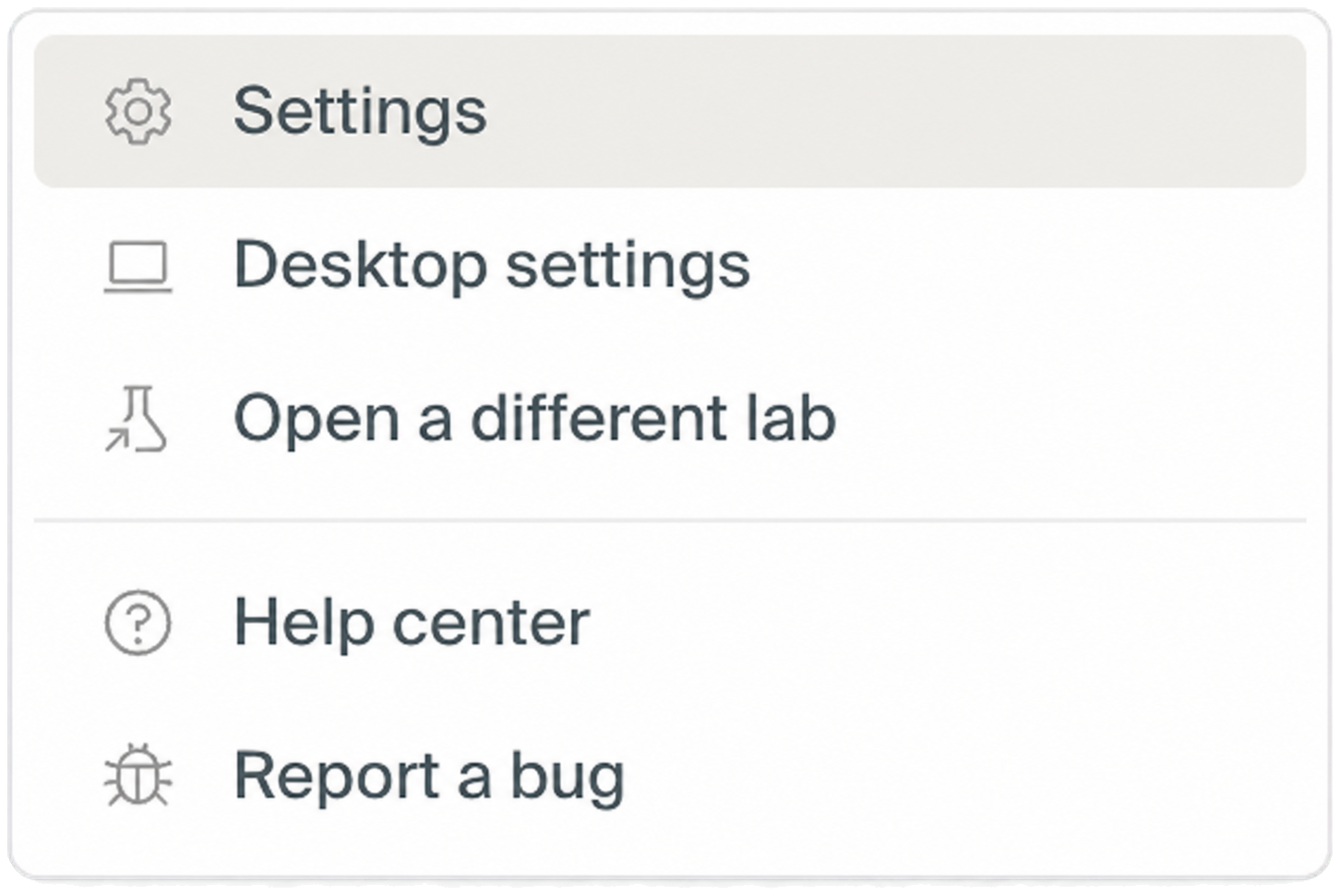
Silico automatically includes available diagnostic context, such as the current route, app and Lab versions, organization, canonical thread and experiment IDs, and error or session telemetry.
If the menu has no Report a bug option, or the form says bug reporting is not set up for your deployment, email support@goodfire.com. Include:
- the organization and Lab
- the canonical thread ID (
th_…) and experiment ID (exp_…), when relevant - the approximate time and timezone
- the latest Timeline state and relevant job status
- exact error text and a screenshot
- steps to reproduce the problem and what you already tried
Do not include passwords, tokens, environment-variable values, private data, or other secrets in a bug report.